Instructions
1 On the capture bar, click Audio  .
.
2 On the audio toolbar, click Start (4) .
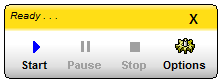
3 When done, click Pause (  ) , or press any hot key.
4 Click Stop (<) .
To play the recording, on the capture bar, click Play (4).
Audio is blank
Blank audio is usually caused by capturing the wrong audio channel. To set the correct channel:
1 In the taskbar notification area, right-click the speaker icon.
2 On the context menu, click Recording Devices.
3 In the Sound applet, left-click the channel to record, such as StereoMix, What-U-Hear or Rec-Playback.
4 Click the Set Default button.
If needed, adjust the channel's volume.
5 Click Properties.
6 Click the Levels tab.
7 Adjust the Volume and Boost (if available).
Sometimes a +30 dB boost is needed for microphones.
Sometimes we've had to close applications and repeat the above procedure several times before it would work.
If your audio card doesn't provide a channel for recording the speakers, click here.
Maximizing sound quality
For maximum sound quality, set recording volume to about 5 on a scale of 6, sample rate to 44KHz and sample size to 16 bit. To access these settings, click Menu (≡) / Settings / Options on the capture bar, then click the Audio tab. Note that captured audio can never exactly match original files because it’s sampled asynchronously. For more suggestions, click here.