Capture pages, pictures or lists that extend out of view, as shown below. Capture as much or as little of the original area as you want.
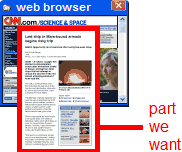
Instructions
Video demo: http://www.youtube.com/user/pixelmetrics
1 On the capture bar, click Scroll (  ).
).
2 Select the area you want to capture, as shown below...
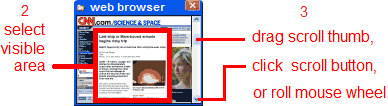
3 Scroll up, down, left or right, in any order, using the scroll bars or mouse wheel.
4 On the scroll toolbar, click Done.
Tips
Select only the area you want, that's easier than trimming out unwanted parts later.
You can tweak the edges of the selected area by dragging the mouse or pressing arrow keys.
Avoid selecting animations, blank areas or popup windows (like floating toolbars), they're difficult to match.
To avoid page numbers that popup as you scroll, scroll using the mouse wheel or scroll button, instead of the scroll bar thumb.
Avoid rolling the mouse over the selected area, it can cause items to highlight or things to pop up.
If you scroll a little too far, just back up.
If you need both horizontal and vertical scrolling, it's easiest to scroll around the outside of the area you want. 
If scrolling around the outside leaves a hole in the middle, scroll back and forth through the entire area.
To capture a drop-down list, it's easiest to first drop the list, press F10, select the scrolling area, then, on the output toolbar, click Scroll.
To scroll capture Metro apps, see Windows 8 Metro apps
Maximum Capacity
About 60 pages in one direction, for all operating systems.
About 159 pages in rectangular grid. About 75 pages for older operating systems, Vista, XP or 2000.