|
Recalling captured images |
Top Previous Next |
|
Saved images To save captured images to any folder on your computer: 1 After you select an area to capture, an output toolbar appears.
2 On the output toolbar, click Save. A SaveAs dialog appears.
3 On the SaveAs dialog, select the desired folder in the Save in field.
CaptureWiz remembers the name and folder you select and automatically applies them next time.
To retrieve these saved images, on the Windows taskbar click Start / Computer.
The default locations for saved images are:
Temporary images CaptureWiz by default saves a temporary image of each capture you make. On the hard disk, these images are stored as highly compressed, but 100% accurate, PNG files. The viewer and mini-viewer display thumbnails of these saved images for you to retrieve at will. These thumbnails take minimal computer memory.
To change where and how long temporary images are stored: 1 On the capture bar menu, click Settings / Options / Main. 2 Select the folder and days in Backup image storage. To delete ALL temporary images: 1 Right-click the mini viewer. 2 On the context menu, click Temporary Folder / Delete All Captured Images.
To stop CaptureWiz from collecting temporary images. 1 On the capture bar, click Settings / Options / Main. 2 Set the Number days images stored to zero.
Viewer
To view temporary images full size On the capture bar click View / Viewer.
To change viewer thumbnail size On the viewer, click the + or – buttons.
To crop full-size images Press F10, then select the desired area.
To automatically close the viewer after performing an output On the viewer, double-click the output button.
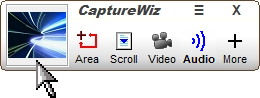
Mini viewer A thumbnail mini viewer on the right end of the capture bar enables you to quickly retrieve recently captured images.
To Save, Print, Sticky Note, Edit, Email or Delete the thumbnail Right-click the thumbnail, then select an output.
To view the thumbnail full size Double-click the thumbnail.
To scroll through captured images Click the up or down button. Hold down the button to repeat. Or, scroll the mouse wheel. Tip: you may need to first click the thumbnail to put Windows' focus on the capture bar. Or, press the keyboard UP, DOWN, HOME and END keys.
To turn off the mini viewer On the capture bar, click Settings / Options / Capture Bar and uncheck Show mini viewer.
Note on file sizes in kibibytes and mebibytes CaptureWiz's viewer and mini viewer use the new standard international prefixes kibibytes (KiB) (1,024) and mebibytes (MiB) (1,048,576) to show the true file size of your stored images. This avoids the ambiguity of K, the official prefix for 1,000, but often shorthand for 1,024 and M, a thousand Ks. If such trivia delights you, find more at http://physics.nist.gov/cuu/Units/binary.html - the official web site of the National Institute for Standards and Technology. |